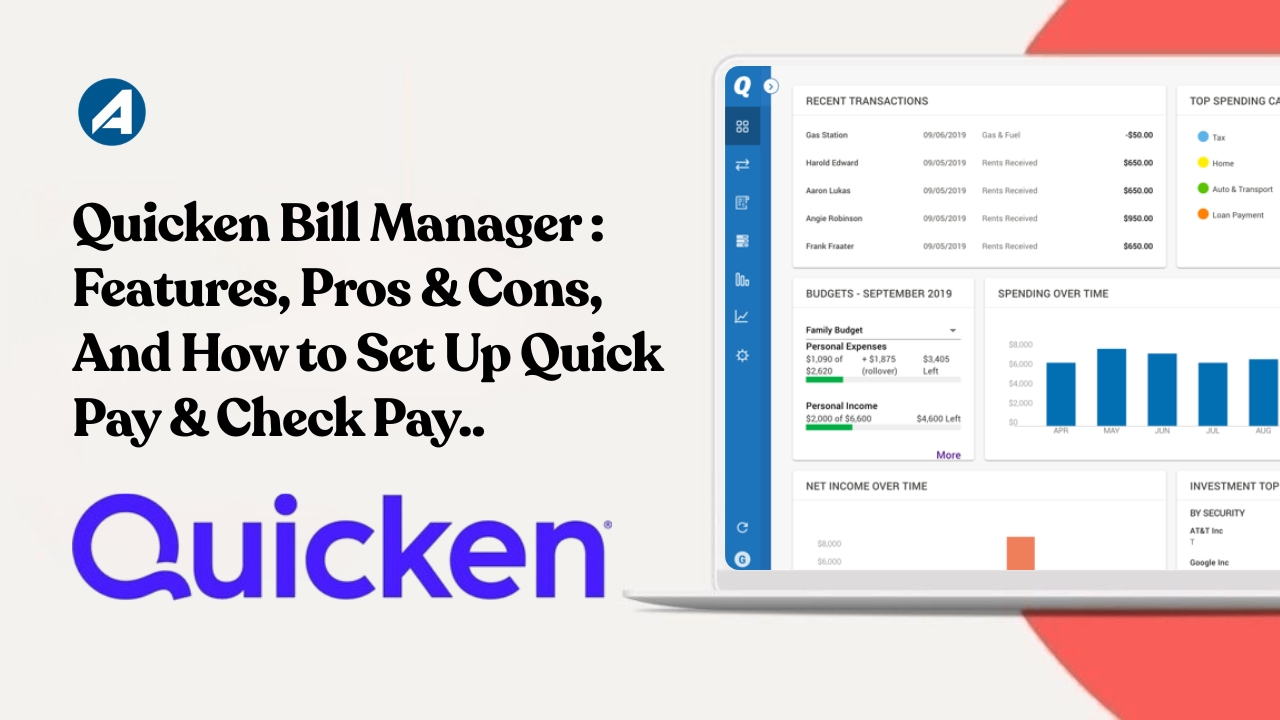
Managing monthly bills can become overwhelming, especially when you have multiple due dates, payment methods, and accounts to track. Fortunately, Quicken offers a powerful solution called Quicken Bill Manager that simplifies bill payments and financial management in one place. With Quicken Bill Manager, users can track, organize, and pay bills directly from their Quicken software. Instead of logging into multiple websites or writing paper checks manually, you can handle nearly all your bill payments through a centralized dashboard.
In this article, you’ll learn what Quicken Bill Manager is, its key features, advantages and disadvantages, pricing details, and instructions for setting up Quick Pay and Check Pay.
What Is Quicken Bill Manager?
Quicken Bill Manager is an integrated bill payment service available within Quicken software. It allows users to view bills, schedule payments, and pay vendors directly from their Quicken account. The platform combines bill tracking and payment capabilities, helping users avoid missed payments while maintaining a complete financial overview. Quicken Bill Manager offers two primary payment methods :
- Quick Pay
- Check Pay
Together, these services provide flexibility for paying both online billers and businesses that still accept paper checks.
How Quicken Bill Manager Works
Quicken Bill Manager connects with your financial accounts and participating billers. Once connected, it enables you to:
- Monitor due dates
- Mail paper checks
- Schedule payments
- View upcoming bills
- Track payment status
- Review payment history
- Send payments electronically
As a result, users gain greater control over their finances while reducing the time spent managing monthly bills.
The Key Features Of Quicken Bill Manager
1. Centralized Bill Tracking :
One of the biggest advantages of Quicken Bill Manager is its centralized dashboard. Instead of visiting multiple websites, you can view all your bills in one location. This feature makes it easier to monitor upcoming payments and maintain financial organization. Benefits include :-
- Better visibility of due dates
- Reduced risk of late payments
- Simplified bill management
- Easier budgeting
2. Quick Pay :
Quick Pay allows users to send electronic payments directly to supported online billers. Because payments are processed electronically, funds typically reach billers faster than traditional mail-based payments. Quick Pay works well for :-
- Utility bills
- Phone bills
- Internet services
- Insurance premiums
- Credit card payments
3. Check Pay :
Not every business accepts electronic payments. Therefore, Quicken includes Check Pay for added flexibility. Check Pay enables users to send paper checks through Quicken without printing or mailing them personally. This feature is especially useful for :-
- Landlords
- Contractors
- Small businesses
- Local service providers
- Organizations that only accept checks
4. Bill Reminders :
Bill reminders help users stay ahead of upcoming due dates. You can configure reminders for:
- One-time bills
- Recurring bills
- Loan payments
- Monthly subscriptions
Consequently, you reduce the likelihood of missing important payments.
5. Payment Scheduling :
Quicken Bill Manager allows you to schedule payments in advance. For example, if your utility bill is due next week, you can schedule the payment today and let Quicken handle the rest. This automation saves time and provides peace of mind.
6. Payment Tracking :
After sending a payment, you can monitor its status directly within Quicken. Payment tracking typically shows :-
- Sent
- Delivered
- Scheduled
- Processing
- Completed
This transparency helps users stay informed throughout the payment process.
7. Integration With Quicken Software :
Unlike standalone bill payment services, Quicken Bill Manager integrates directly with your financial data. This integration enables :-
- Budget tracking
- Financial reporting
- Expense categorization
- Cash flow monitoring
As a result, users gain a complete view of their financial health.
The Benefits Of Using Quicken Bill Manager
01. Save Time : Managing bills manually requires logging into multiple accounts and remembering various passwords. With Quicken Bill Manager, you can manage everything from one dashboard.
02. Reduce Late Payments : Late fees can add up quickly. Since Quicken provides reminders and payment scheduling tools, users can significantly reduce missed payments.
03. Improve Financial Visibility : The platform offers a clear overview of :-
- Upcoming bills
- Account balances
- Payment history
- Monthly expenses
This visibility helps users make informed financial decisions.
04. Eliminate Manual Check Writing : Many people still need to send paper checks. However, Check Pay eliminates the hassle of :-
- Writing checks
- Buying stamps
- Purchasing checks
- Addressing envelopes
05. Maintain Accurate Financial Records : Every payment is automatically recorded inside Quicken. Therefore, tax preparation and expense tracking become much easier.
Pros Of Quicken Bill Manager
Let’s examine the major advantages.
- Convenient Bill Management : Users can manage multiple bills from a single platform.
- Supports Electronic and Paper Payments : The combination of Quick Pay and Check Pay provides flexibility.
- Automatic Payment Tracking : You can monitor payment status without contacting billers.
- Strong Integration With Quicken : Financial records remain synchronized with your budgeting tools.
- Reduced Risk of Missed Payments : Reminders and scheduling features improve payment consistency.
- Time Saving Automation : Users spend less time handling monthly bills.
Cons Of Quicken Bill Manager
Despite its advantages, Quicken Bill Manager has some limitations.
- Monthly Transaction Limits : Depending on your Quicken subscription, you may have limits on the number of Quick Pay and Check Pay transactions available each month. Heavy users may require additional payments.
- Not All Billers Support Quick Pay : Some organizations cannot receive electronic payments through Quick Pay. In those situations, users must use Check Pay instead.
- Delivery Time For Check Pay : Paper checks require mailing time. Therefore, users should schedule Check Pay transactions several days before the due date.
- Requires Active Quicken Subscription : Quicken Bill Manager is not a standalone service. Users need an eligible Quicken subscription.
- Occasional Connectivity Issues : Like many financial platforms, connection issues with banks or billers may occasionally occur. Although these issues are usually temporary, they can cause delays.
Quick Pay vs. Check Pay
Understanding the differences between these two services helps users choose the best option.
| Feature | Quick Pay | Check Pay |
|---|---|---|
| Payment Type | Electronic | Paper Check |
| Delivery Speed | Faster | Slower |
| Requires Supported Biller | Yes | No |
| Mailing Required | No | Yes |
| Best For | Utilities, Credit Cards | Landlords, Contractors |
| Tracking Available | Yes | Yes |
How To Set Up Quick Pay In Quicken
Setting up Quick Pay is relatively simple. Follow these steps carefully.
Step 1 : Open Quicken
Launch your Quicken software and sign in to your account.
Step 2: Navigate to Bills & Income
From the main menu : Bills & Income → Bill Manager
This section displays your bill management options.
Step 3: Add an Online Biller
Click : Add Online Biller
Then search for your service provider.
Examples include :
- Utility companies
- Credit card issuers
- Insurance providers
- Internet providers
Step 4: Enter Login Credentials
Provide the username and password used for the biller’s website. Quicken will securely connect to the biller’s account.
Step 5: Verify Account Information
After connecting successfully, Quicken retrieves :
- Account details
- Current balance
- Upcoming due dates
Review the information for accuracy.
Step 6: Select Quick Pay
Choose the bill you want to pay. Then click : Pay with Quick Pay
Step 7: Choose Payment Account
Select the checking account that will fund the payment.
Step 8: Enter Payment Amount
You can pay :
- Full balance
- Minimum amount
- Custom amount
Step 9: Schedule Payment
Select the desired payment date. Review all information before confirming.
Step 10: Submit Payment
Click Send Payment. Quicken will process the transaction electronically. You can track the payment status directly within the software.
How To Set Up Check Pay In Quicken
If the recipient does not support Quick Pay, use Check Pay. Here’s how.
Step 1: Access Bill Manager
Open Quicken and navigate to : Bills & Income → Bill Manager
Step 2: Add a Payee
Choose : Add Payee
Enter :
- Business name
- Individual name
- Mailing address
Ensure the information is accurate to avoid delivery issues.
Step 3: Select Check Pay
Choose the newly added payee. Then click : Pay with Check Pay
Step 4: Enter Payment Amount
Specify the exact amount you want to send.
Step 5: Select Funding Account
Choose the bank account from which the funds will be withdrawn.
Step 6: Choose Delivery Date
Select the date you want the check mailed. Remember to allow sufficient mailing time.
Step 7: Review Details
Verify :
- Payee information
- Payment amount
- Mailing address
- Funding account
Step 8: Submit Payment
Click Send Check. Quicken will print and mail the check on your behalf.
Step 9: Track Delivery Status
After submission, you can monitor the payment status within Quicken. Tracking helps confirm that the payment was processed successfully.
Tips For Using Quicken Bill Manager Effectively
To maximize the benefits of Quicken Bill Manager, follow these best practices.
- Schedule Payments Early : Even electronic payments can occasionally experience delays. Therefore, schedule payments several days before the due date.
- Use Quick Pay Whenever Possible : Quick Pay is typically faster and more efficient than paper checks. Whenever supported, choose electronic payments.
- Monitor Monthly Limits : Keep track of your available Quick Pay and Check Pay transactions to avoid unexpected restrictions.
- Update Biller Information Regularly : If a biller changes account details or payment information, update your records promptly.
- Review Payment History : Regularly reviewing payment history helps identify errors and maintain accurate financial records.
Is Quicken Bill Manager Worth It?
For most Quicken users, the answer is yes. Quicken Bill Manager combines bill tracking, payment scheduling, and payment processing into a single platform. As a result, users gain greater convenience, improved organization, and enhanced financial visibility. The service is particularly valuable for individuals who :-
- Prefer automation
- Pay multiple monthly bills
- Want centralized financial management
- Already use Quicken software regularly
- Need both electronic and paper payment options
However, users who rarely pay bills through Quicken or exceed monthly transaction limits may find the service less beneficial.
Note : We Offer Quicken Setup, Migration, Upgrade & Backup, Quicken Support Services, Quicken Consulting Services, Quicken Bookkeeping Services, For startups and home business.
Quicken Bill Manager offers a practical solution for managing and paying bills directly from Quicken. Through its Quick Pay and Check Pay features, users can handle both electronic and paper-based payments without leaving the software. Additionally, bill reminders, payment scheduling, and transaction tracking help streamline the entire bill-paying process. While some limitations exist, such as monthly transaction caps and occasional connectivity issues, the overall benefits outweigh the drawbacks for most users. If you already use Quicken and want a more organized way to manage your finances, Quicken Bill Manager can be a valuable addition to your financial toolkit. By setting up Quick Pay and Check Pay correctly, you’ll save time, reduce stress, and stay on top of your monthly obligations with greater confidence.