Managing payroll documents has become much easier with online employee portals. Instead of waiting for paper pay stubs or tax forms, employees can securely access important payroll records anytime. One of the most popular payroll portals is Intuit Workforce. If your employer uses QuickBooks Payroll, you may receive an invitation to use Intuit Workforce. Through this portal, you can view your pay history, download W-2 forms, and access payroll information from almost any device.
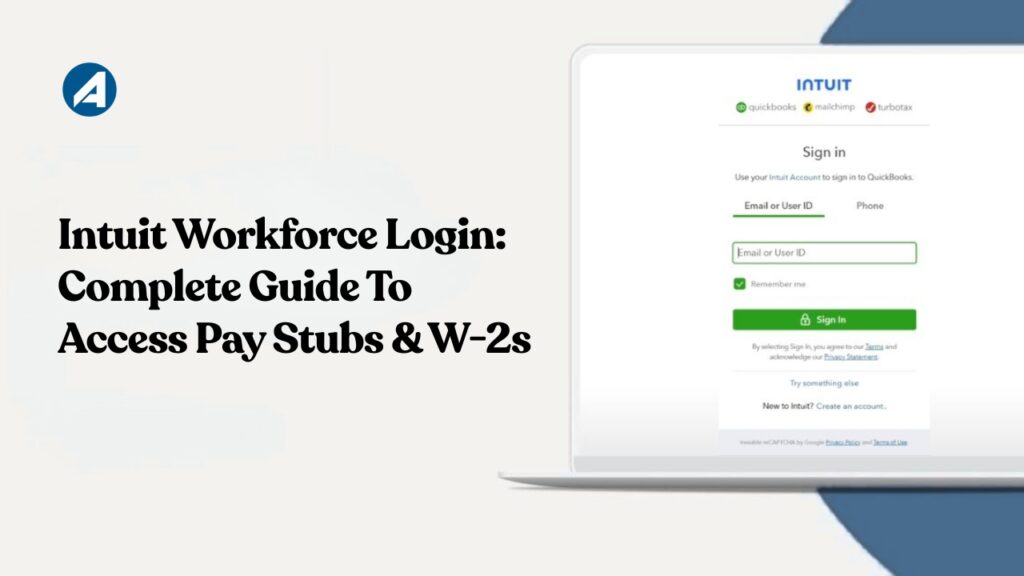
This guide explains everything you need to know about the Intuit Workforce Login process. You’ll also learn how to create an account, troubleshoot login problems, reset your password, and keep your payroll information secure.
What Is Intuit Workforce?
Intuit Workforce is a secure online employee portal developed by Intuit. It allows employees whose companies use QuickBooks Payroll to access payroll information digitally. Instead of requesting paper copies from the employer, employees can sign in to Workforce and download payroll documents whenever needed. The portal is designed to save time for both employers and employees while improving document security and accessibility.
What Can You Do with Intuit Workforce?
After logging in successfully, employees can perform several important tasks.
- Access Pay Stubs : Employees can view current and previous pay stubs whenever needed.
- Download W-2 Forms : Tax season becomes easier because W-2 forms are available online.
- View Payroll History : The portal stores payroll records, making it simple to review payment history.
- Secure Online Access : Payroll information remains protected through encrypted login and secure authentication.
- Paperless Payroll : Employees no longer need to keep physical payroll documents.
Who Can Use Intuit Workforce?
Intuit Workforce is intended for employees whose employer uses QuickBooks Payroll and has enabled Workforce access. Before you can log in, your employer must send an invitation to your email address. Without an invitation, you cannot create an account independently.
Intuit Workforce Login Requirements
Before signing in, make sure you have:
- A registered Intuit account
- Your email address
- Your password
- Internet connection
- Updated web browser
- Employer invitation (for first-time users)
How To Create An Intuit Workforce Account
If this is your first time using Workforce, follow these steps.
Open The Invitation Email Sent By Your Employer.
- Click the Accept Invitation button.
- Sign in with your existing Intuit account.
- If you don’t already have an Intuit account, create one using your email address.
- Verify your email if requested.
- Complete the setup process and finish creating your account.
Once completed, you’ll be ready to access Workforce whenever you need.
How To Complete The Intuit Workforce Login
Logging into Workforce is straightforward.
- Open the Workforce login page.
- Enter your registered email address.
- Enter your password.
- Complete any required identity verification.
- Click Sign In.
After successful authentication, your dashboard will open.
How To Access Your Pay Stubs
Once logged in, accessing pay stubs only takes a few moments.
- Sign in to Workforce.
- Open the Payroll section.
- Select the desired paycheck.
- View the pay stub.
- Download or print it if necessary.
Many employees use Workforce because it eliminates the need to request copies from HR.
How To Download Your W-2 Form
During tax season, W-2 forms are one of the most requested documents.
To download yours :
- Log in to Workforce.
- Open the Tax Forms section.
- Choose the appropriate tax year.
- Download the PDF.
- Save or print the document.
This makes filing taxes much more convenient.
How To Reset Your Password
Forgot your password? Fortunately, resetting it is simple.
- Select Forgot Password on the login page.
- Enter your registered email address.
- Check your email for the password reset link.
- Create a new password.
- Sign in using the updated password.
For better security, choose a strong password that includes uppercase letters, lowercase letters, numbers, and symbols.
Common Intuit Workforce Login Problems
Although Workforce is reliable, users occasionally experience login issues.
01. Incorrect Email Address : Using a different email than the one registered with your employer can prevent access.
Solution : Verify that you’re entering the correct email.
02. Incorrect Password : Typing mistakes are one of the most common login problems.
Solution: Reset your password if necessary.
03. Browser Issues : Older browsers may not work properly.
Solution: Update your browser or clear your cache and cookies.
04. Expired Invitation : Sometimes the original invitation expires.
Solution: Ask your employer to send a new invitation.
05. Account Verification Problems : If your identity hasn’t been verified, access may be restricted.
Solution: Complete all verification steps during account setup.
Can You Use Intuit Workforce on Mobile?
Yes. Employees can access Workforce from most modern smartphones and tablets using a supported mobile browser. Whether you’re at home, traveling, or working remotely, you can quickly view payroll information from your mobile device.
Security Tips For Intuit Workforce Users
Since payroll information contains sensitive personal data, following good security practices is essential. Here are a few recommendations :
- Use a strong password.
- Enable two-step verification if available.
- Never share your login credentials.
- Avoid using public Wi-Fi when accessing payroll records.
- Sign out after using shared devices.
- Keep your browser updated.
- Watch for phishing emails pretending to be Intuit.
These simple habits help protect your personal information.
The Benefits Of Using Intuit Workforce
Both employees and employers benefit from Workforce.
For Employees :
- Instant access to payroll records
- Easy W-2 downloads
- Secure document storage
- Mobile accessibility
- Reduced paperwork
For Employers :
- Less administrative work
- Lower printing costs
- Faster payroll document delivery
- Better employee self-service
- Improved record management
Best Practices For First Time Users
If you’re using Workforce for the first time, consider these tips:
- Register using the same email your employer has on file.
- Verify your account immediately after receiving the invitation.
- Save your login information securely.
- Download important tax documents before deadlines.
- Keep your contact information updated.
These practices help ensure uninterrupted access.
Frequently Asked Questions
Is Intuit Workforce free for employees?
Yes. Employees can access Workforce at no additional cost if their employer provides access through QuickBooks Payroll.
Can I access old pay stubs?
Yes. Available payroll history depends on your employer’s payroll records and settings.
Why didn’t I receive my Workforce invitation?
Check your spam or junk folder first. If you still can’t find it, contact your employer to send another invitation.
Can I use the same Intuit account for multiple services?
Yes. In many cases, your Intuit account can be used across eligible Intuit products.
What should I do if my account is locked?
Wait for the temporary lock period to end or reset your password. If the problem continues, contact your employer or Intuit Support.
Can I print my pay stubs?
Yes. Workforce allows you to download and print available pay stubs.
Can I access Workforce after leaving my job?
Access depends on your former employer’s payroll settings and document availability.
Is my payroll information secure?
Yes. Workforce uses security measures designed to protect employee payroll information. Users should also follow good password and account security practices.
Do I need to install software?
No. Workforce can generally be accessed through a compatible web browser.
Can I change my email address?
Yes, but changes may require updating your Intuit account and confirming the new email address. In some situations, your employer may also need to update your employee information.
Intuit Workforce simplifies payroll management by giving employees secure online access to pay stubs, W-2 forms, and payroll history. Instead of relying on paper documents or contacting HR for every request, employees can retrieve important records whenever they need them. If you’re using QuickBooks Payroll through your employer, setting up your Workforce account is a worthwhile step. By following the login instructions, keeping your account secure, and knowing how to troubleshoot common issues, you can make the most of everything the platform offers throughout.
Note : At Aenten, we provide Professional Bookkeeping Services & QuickBooks Services designed to solve real business problems and help businesses operate with confidence.